Kontakt Landauer Direct
LANDAUER direct Administrera er dosimetri enkelt själv online!

Participants doses transmission

Do you want to share dose results with your participants? LANDAUER direct allows them to access their latest dosimetry results.

This new, simple and secure feature is available to the users with dose access.

Find out how:

Provide the email addresses for your participants

You can provide the email addresses for your participants in three ways:
  1. individually, when creating a participant, from the “Participant details” screen,
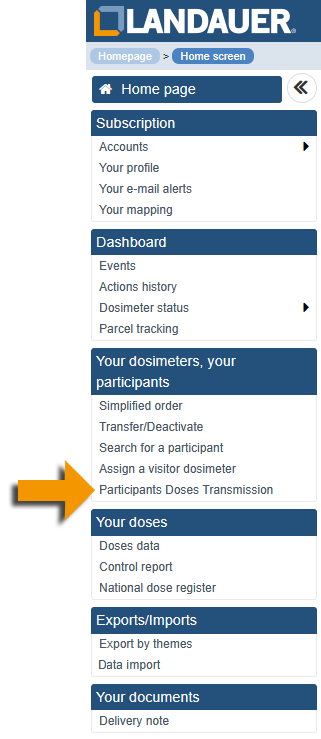
  2. individually, for a small number of participants, via the “Participants Doses Transmission” menu,
  3. collectively, by exporting the list of participants without email addresses with the “Participants Doses Transmission” menu, then importing this completed list in the “Data import” menu.

participant dose transmissionun Through the individual file of the participant
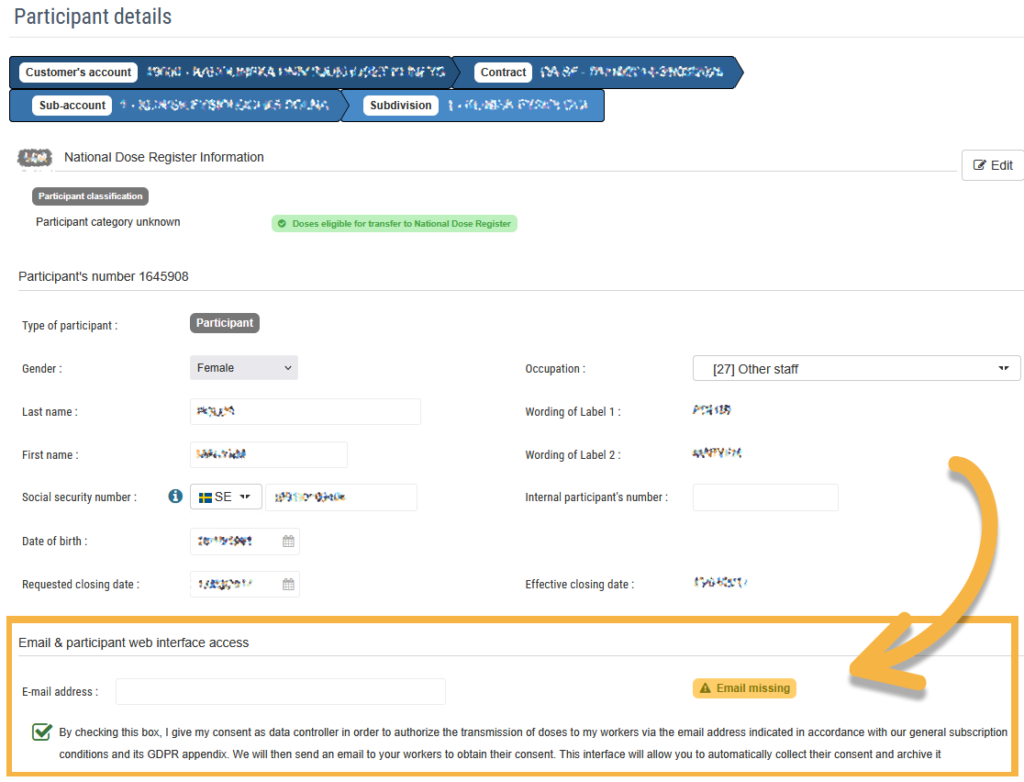

  1. Go to the participant screen using the ”Your mapping” menu, then scroll down to the ”Email & participant web interface access” section.
    email participant sending dose
  2. Enter the email in the designated field.
    The email address format is validated when the field turns green.
    On first use, remember to tick the consent box for data processing.
    agrrement sending dose
  3. Click on ”Validate”. The status of the participant changes to ”Waiting for participant validation”.
    waiting validation
  4. An email is sent to the participant to confirm their consent.

Go to step 2


deux Through the ”Participants Doses Transmission” menu

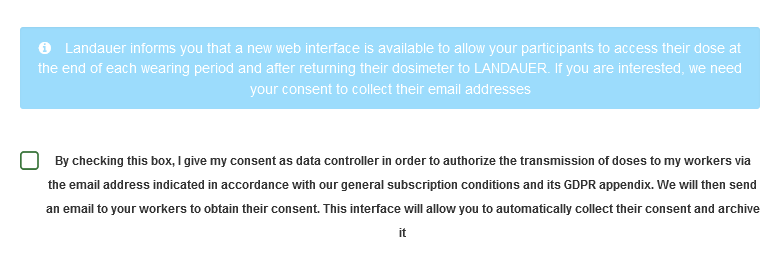
During the first use of the ”Participants Doses Transmission” function in the menu on the left side of your screen, you must provide your consent as the data controller. This message will only be displayed once for the account.Consent using data
  1. The list of all your participants appears.
    You can filter according to the validation status of the emails:
    Email missing
    Waiting for participant validation
    Worker validation received
    Refusal of worker consentfilter selection
  2. Select ”Email missing”, then go to the line of the participant you wish and complete their email address.
    email agreement
  3. Click on the icon disquette to save.
    The status of the participant changes to ”Waiting for participant validation”.
    transmission
  4. The participant receives an email to validate the sending of their doses.

Go to step 2

deux & trois Through the ”Participant Dose Transmission” menu, then ”Data Import”

  1. Go to the ”Participant Doses Transmission” menu on the left side of the screen.
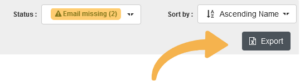
  2. Filter the list of participants with the status ”Email missing”.
    filter on statut of dose transmission
  3. Click on ”Export” on the left side of the screen.
    export
  4. Open the Excel© file and fill in the ”Column F” with the email addresses of your participants.
    excel file for export
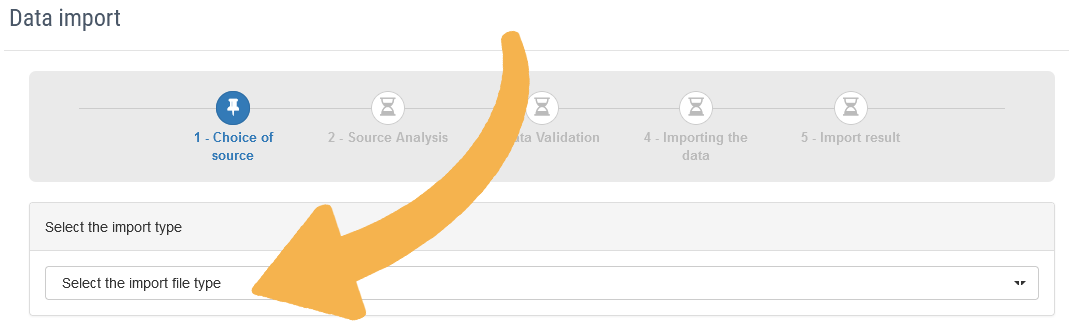
  5. Go to the ”Data Import” menu on the left side of the screen trois.
  6. In the cell ”Select the import file type”, select ”Participants email”.
    Import type choice
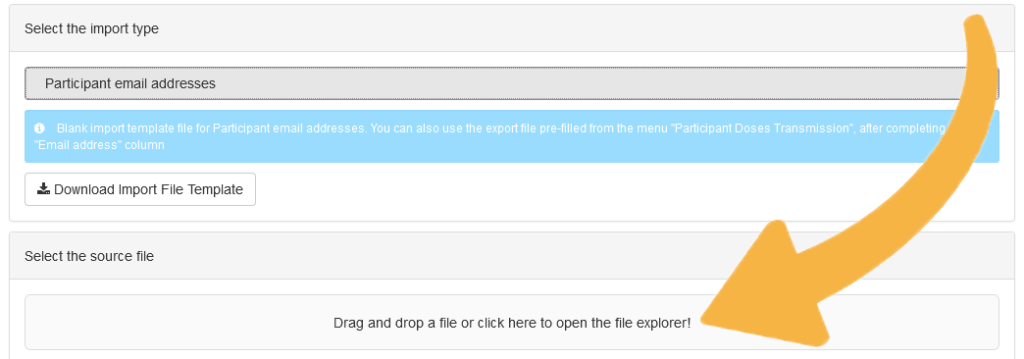
  7. Import the Excel© file that has been previously updated.
    Drop drag data
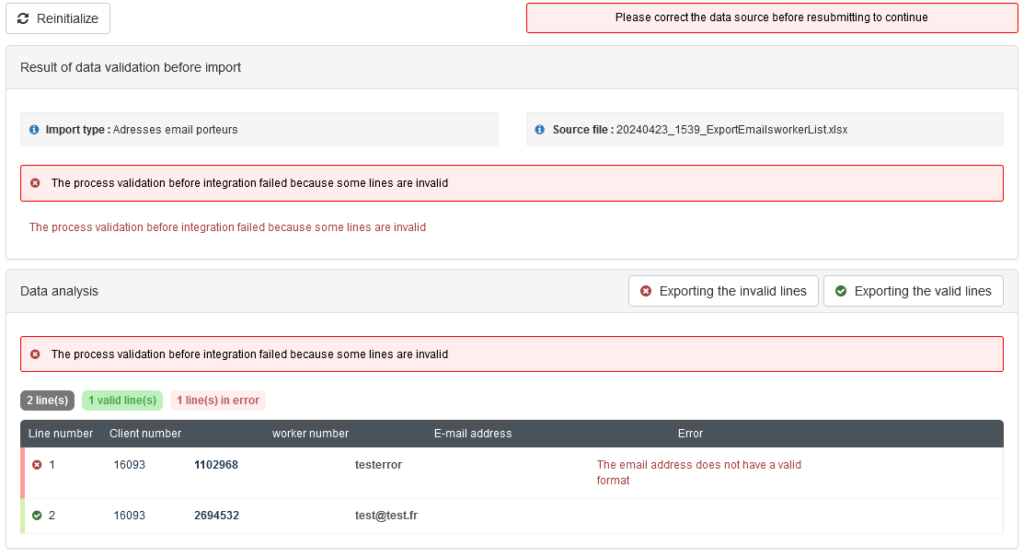
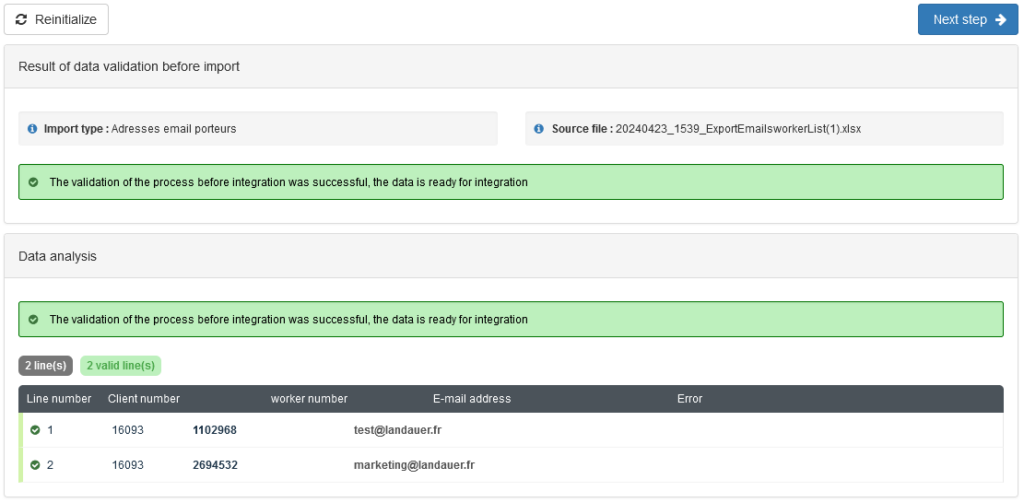
  8. The following window allows you to review the data before importing and notifies you of any input errors.

    Once the correct data is entered, click on ”Next step”.

  9. The last window confirms the import. Then click ”Finish”.
  10. An email is sent to each participant whose email has been added to collect their consent.

Go to step 2

Please note, if the email address needs to be changed, two scenarios arise:

  1. As long as the participant has not given their consent, the email address can be modified via the participant’s profile.
  2. If the holder has given consent, the modification cannot be made online.
    Please contact our Customer Service via the ”Contact us” button at the top right of your screen.

When the status of the participant changes to ”Waiting for participant validation”, they receive the following email.
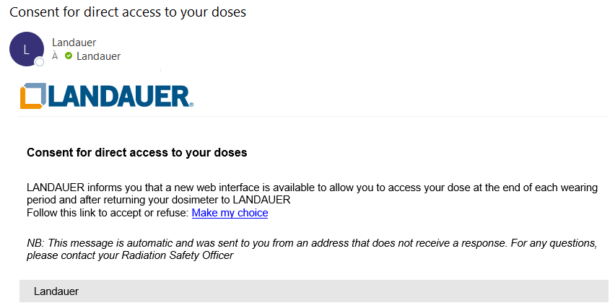
consent access to doses
Upon clicking, a web browser window opens.

To verify the identity of the email recipient,  before any other action, they must enter their:
• Social security number for Swedish participants
• Personal identification number for Norwegian participants
• CPR number for Danish participants
Their access to the doses will be valid only if it matchesnumber entered in the ”Participant details” menu.
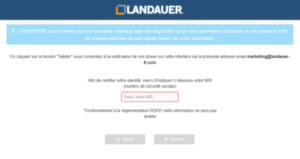
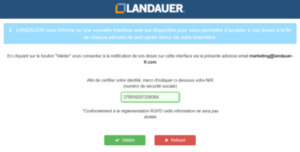
 

From there, three situations are possible in accordance with GDPR requirements:

  1. The participant gives their consent
    His status changes to ”Participant consent received”.
    Go to step 3
    space
  2. The participant refuses to give their consent
    Their status changes to ”Refusal of worker consent”.
    LANDAUER is no longer authorized to communicate with this participant.
    No further emails will be sent.
    space
  3. The participant does not respond
    Their status remains as ”Waiting for participant validation”.
    You can follow up by clicking ”Resend email to obtain participant consent” on the participant’s line to the right of the screen.
    A new email will be sent.
    space
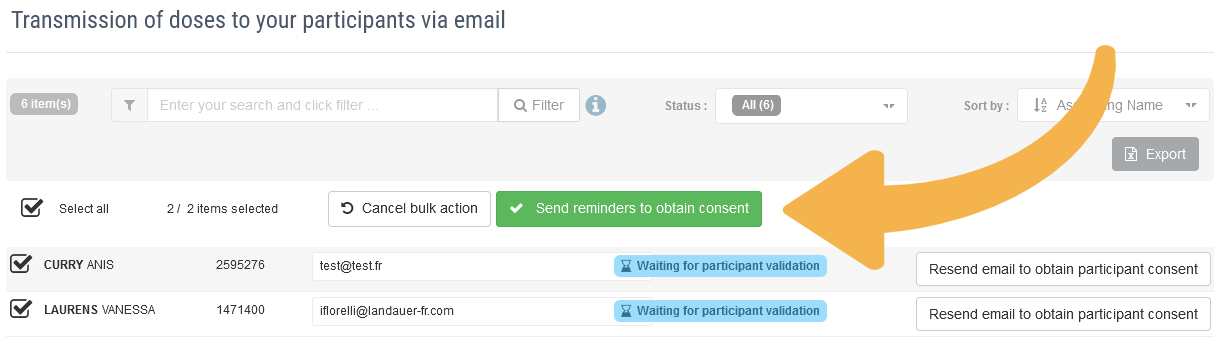
    If several of your participants have not answered to the validation request, you can send them a reminder collectively with a ”Bulk action”.
    1. Go to the ”Participants Doses Transmission” menu.
    2. Filter the list of participants with the status ”Waiting for participant validation”.
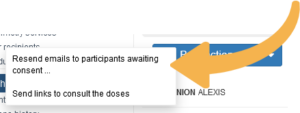
    3. Click on ”Bulk actions” to the left of the filter area and select ”Resend email to participants awaiting consent”.
    resend invitaiton
    A window opens, check the selection of participants, then click on ”Send reminders to obtain consent”.
    bulk action ask consent


Trigger the sending of doses to the participant(s).

You need to trigger the sending of the dosimetry results. This is not done automatically to allow you to review the dosimetry results beforehand or filter the participants.

We recommend setting up the email alert ”Provision of control report”. You will be notified when a majority of the dosimetry results are available.

If the dosimeter has not been received/analysed by Landauer, ”Not returned” will appear in the dose column.

In the ”Participants Doses Transmission” menu, once the participant’s consent is received, the status changes to ”Worker consent received” and the button ”Send link to consult the doses” appears.
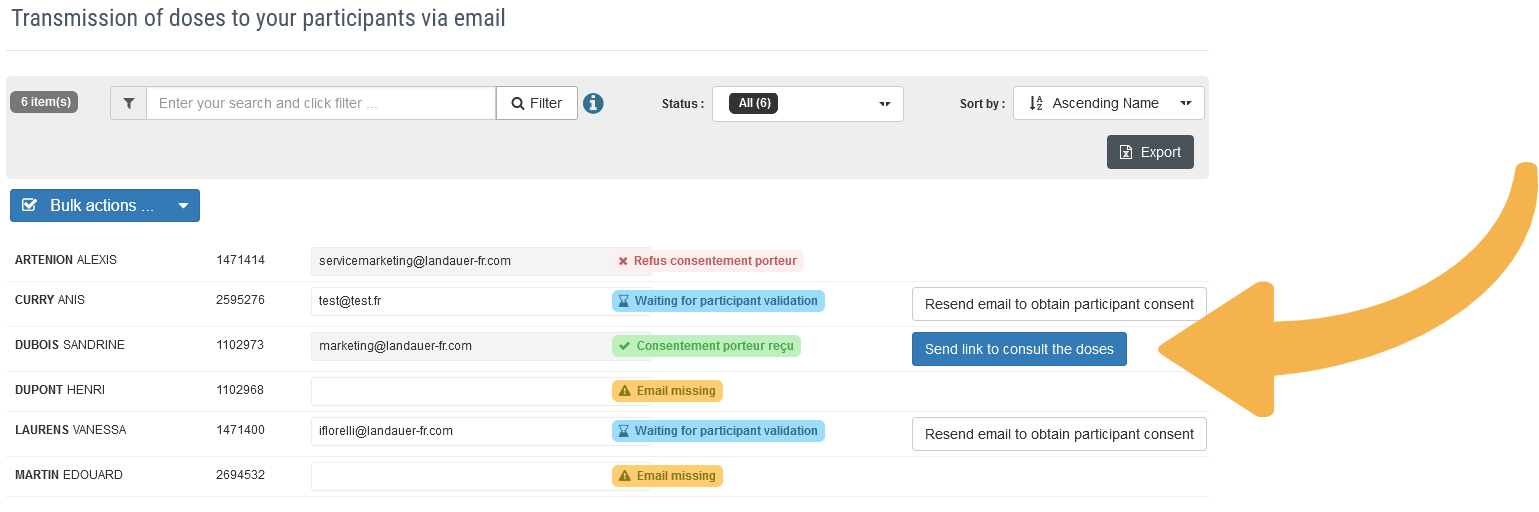
send doses to participants

By clicking on it, an email is sent to the participant with the link to access the latest dosimetry results.

Go to step 4

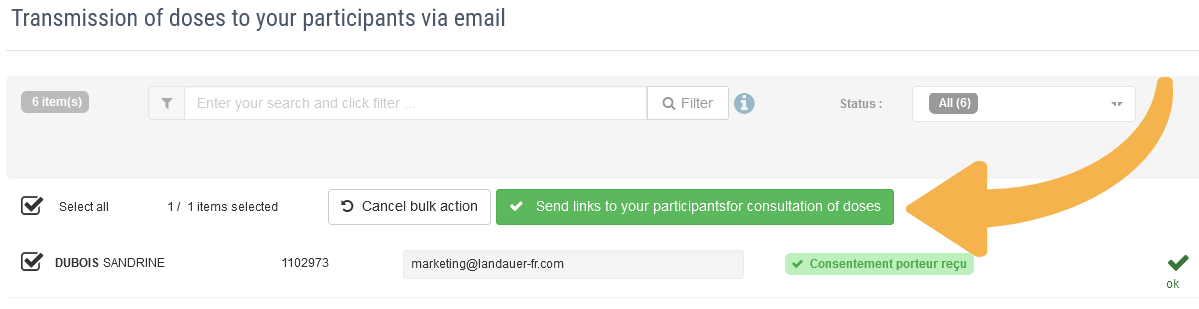
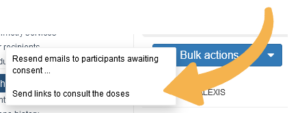
If you want to send the links to multiple participants, you can perform a ”Bulk action”.
  1. Go to the ”Participants Doses Transmission” menu.
  2. Filter the list of participants with the status ”Worker consent received”.
  3. Click on ”Bulk actions” to the left of the filter area and select ”Send links to consult the doses”.
    bulk aciton
    A window opens, verify the selection of participants, then click on ”Send links to your participants for consultation of doses”.
    send results

Doses reception by participants

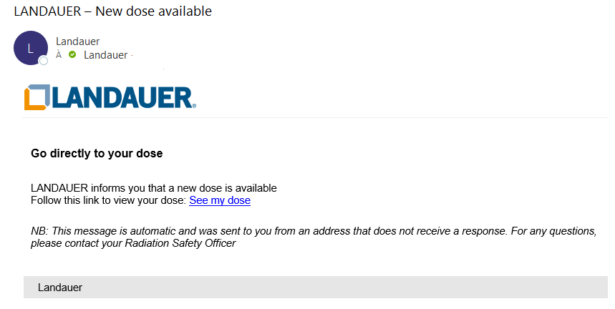
Participants who have given their consent receive the email below notifying them of the availability of doses. For security reasons, dose results are not shown in the email. They click on the link to view the results.
This link is valid for 1 month.
Doses reception by participants

No password is required since the email address was controlled.

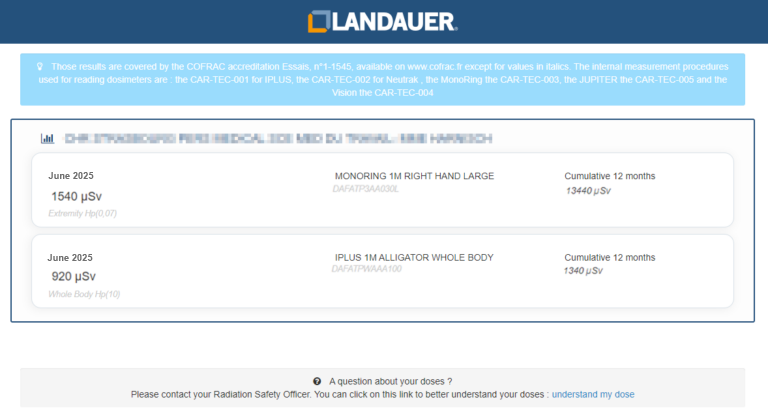
The participant accesses the following page:
The participant accesses the following page

These are the results obtained for the last wear period, as well as the cumulative dose for the rolling 12-month period.
The doses are expressed in µSv for each type of dosimeters.

Assistance for understanding the results is available at the bottom of the page; you can view it here.

We encourage you to set up the email alert ”Provision of control report” to proceed with sending after the majority of the results have been updated.